Lecture console on a tablet
Eight pen colours, five highlighters under the ink, a pointer that keeps a written word lit, and a magnifier the projector mirrors. Add a grid sheet after any slide; speaker notes stay with you.
For lectures and hands-on classes
A shared Python notebook, slides with handwritten notes and tasks where everyone answers on their own sheet. A student needs a browser and a name.
Open source under MIT. pip install colloq and the class runs on your own
machine.
Install · three commands
Colloq installs like any Python package and brings a class up on your own machine. Students need one link — no accounts, no Python to install.
pip install colloq
colloq start
a class on this machine
colloq start --share
one link for your students, while the terminal stays open
01 / Class
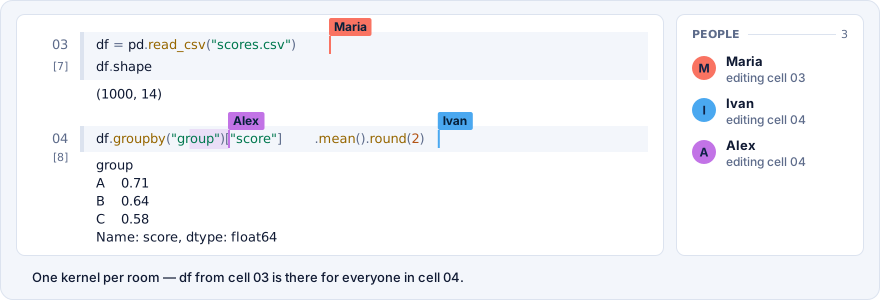
You open the notebook and the room works in it with you. Edits and run output are visible to everyone. Data you loaded into Python is there for the next cells — students’ cells too.
02 / Lecture
Upload a PDF, open the projection on the big screen and connect a tablet as the lecture console. Students see the slides and your handwriting in their own browsers.
Lecture console on a tablet
Eight pen colours, five highlighters under the ink, a pointer that keeps a written word lit, and a magnifier the projector mirrors. Add a grid sheet after any slide; speaker notes stay with you.
Projector
The slide fills a separate window. Page through it with the arrow keys or a presentation remote, and show code from the notebook while you explain.
Student
Can go back a page, finish reading and catch up with one tap. The practice notebook is already open in the same room.
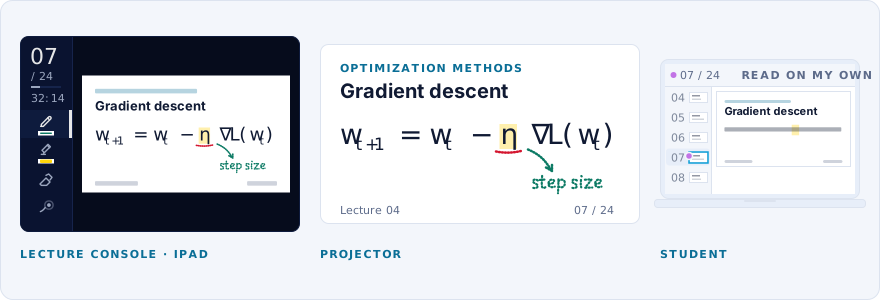
The console is built for an iPad with Apple Pencil. Palm rejection and Split View are supported.
03 / Council
Open a cell in Council. Every student writes on their own sheet: they do not see each other’s answers until you show one to the class.
The Oracle can draft a summary and replies. You decide what reaches the students.
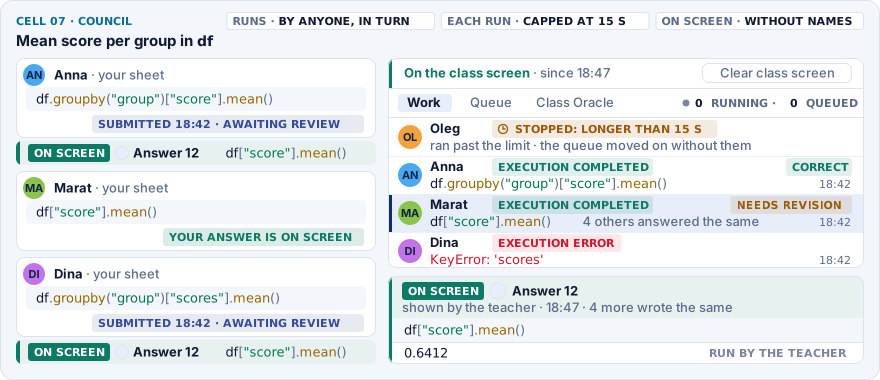
Separate answers, your data. An attempt sees the variables you prepared and works on personal copies of them, so one student’s edits do not spoil the class’s data. When the class computes on a machine, attempts run side by side on a pool of workers, from a snapshot of the notebook’s kernel, without holding it up.
04 / Competitions
Give the group the data and the task. A participant sends a .ipynb notebook; the server runs it from scratch and scores it with your metric. The answers it is scored against never reach the participant, who sees their own place on the leaderboard.
Submissions can get GPUs — this server’s or a connected machine’s; up to eight submissions share one card.
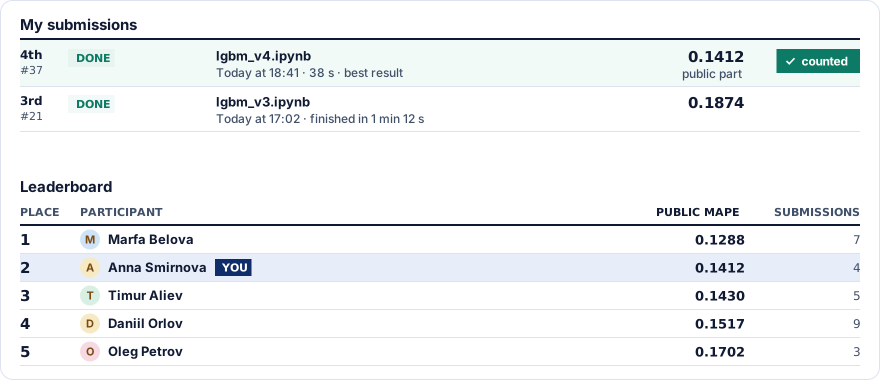
A class competition, not an exam. It does not check who is at the keyboard. For the debrief there is Leaderboard on the projector: one table, without file names or service marks.
05 / Contests New
Build a class test or a practice round out of problems A, B, C… A participant writes a solution in Python, C++ or C right on the problem’s page and gets a verdict within seconds: OK, WA, TL, ML, RE — with the number of the test it failed.
The reference solution is judged like a submission and can write the tests’ answers itself; a contest does not open until the reference passes every test.
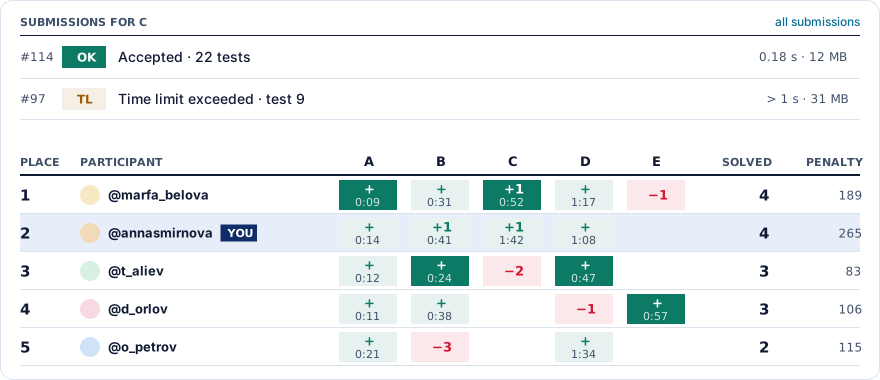
A class contest, not an olympiad. It does not check who is at the keyboard. The contest console shows every test’s output and the participants’ questions; after a test fix the submissions can be rejudged, and the board can go on the projector.
Step 01 · Teacher
Pick the format, the environment and the rules. Upload a PDF, start from an empty notebook or import materials from GitHub.
Step 02 · Student
A student types a name and picks a mark. No email, no password, no Python on their computer.
Step 03 · The class
Show slides, write code together or let everyone answer on their own. Afterwards the materials stay readable behind the same link.
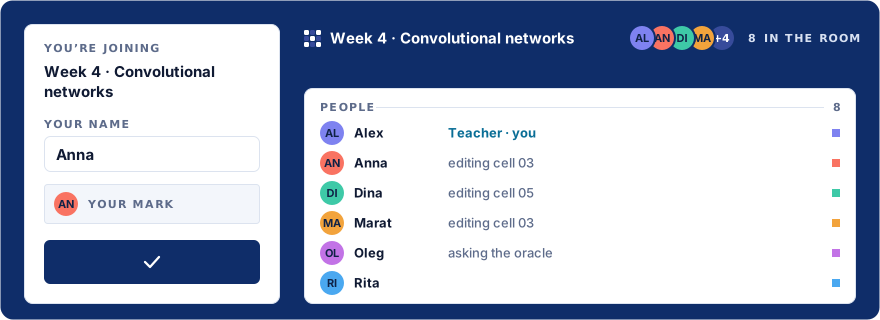
The notebook, files, terminal and the Oracle live in the same room. The teacher decides who may use them.
One kernel
Two cells of the same notebook. You choose the order they run in.
Maria, student · cell 3
df = pd.read_csv("data.csv")
df.shape
You · cell 4
df["target"].mean()
An interactive sample: run Maria’s cell first, then yours. No Python runs on this page.
People can edit the same cell at once. Cursors carry names, and edits show up for the whole room.
A variable from cell three is there in cell four, whoever ran it. Output and the run queue are shared.
Install a package once and the room has it. Commands run in the class environment.
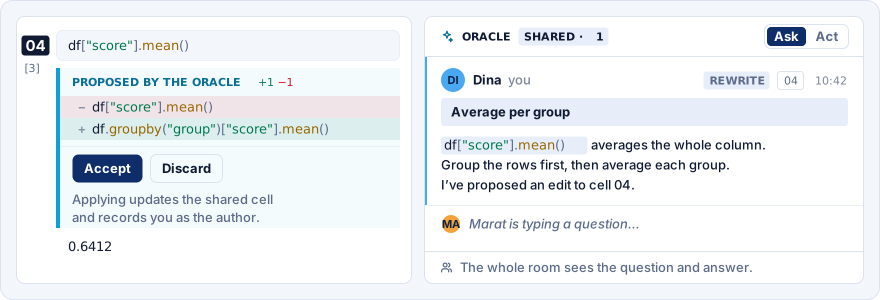
The assistant answers with the cells’ code and output in view. The whole room sees the questions and the answers. When you create a class you can leave it on hints only, or turn it off.
Drag data in, sort files into folders. They are there from the notebook and from the terminal of the class.
Run Colloq on your own computer or server. Different courses can get their own environments with the packages they need, and heavy classes and submissions can compute on connected GPU machines.
See who changed the code. The teacher can restore a cell or the whole notebook; Ctrl+Z undoes your own edits.
Ask it to explain an error or propose an edit. The change is visible before you accept it, and you can discard it.
Set who may edit, run code and upload files. After you end the class, students keep read access.
Before your first class
What is shared, what is kept, and where this tool stops.
The notebook, the files and the Oracle thread stay behind the same link. End class leaves students with reading, and keeps editing and runs for the teacher. You can resume the class; the notebook downloads as .ipynb.
The teacher can interrupt the run, restore a cell from history, or restrict editing and running. Restarting the kernel clears the variables but keeps the notebook text and the files.
The class goes on for everyone else. Edits kept in the browser sync once the connection is back. The same link brings the student into the room again.
A student sees their own answer, the teacher sees the room’s. To discuss one, the teacher can show it to everybody. Attempts work on personal copies of the data — in the notebook’s kernel or, when the class is on a machine, on a pool of workers. This is a teaching format, not an isolated sandbox for grading exams.
To the provider you configured: the question, the notebook and thread context, and the open file. In a Council review — the task and the submitted answers; in Act mode the assistant may read further files of the room. You choose the provider and set the limits.
You can point it at a local model through Ollama or vLLM. With no provider configured, the class simply runs without the Oracle.
Yes, as long as the room can reach the server. Voice and video stay in whatever call service you use; the code, the slides and the tasks open in Colloq.
Much of it: a course has its own page with a dated plan and the materials of every class, and competitions with a leaderboard and contests with tests cover tasks with a check. Grades and rosters stay in your own course system.
On your own machine
Colloq runs on a teacher’s laptop, a department server or a VPS. Python executes on that machine; students connect from a browser.
The source is open under MIT and the package is on PyPI. Python runs on your machine, and the class materials stay there too.
What you need
Python and Docker; resources to match the course. For a cluster, a Helm chart for Kubernetes.
A local network, your own domain or --share. Cloudflare addresses do
not open from Russia — for those rooms you run your own relay.
An API from the provider you pick, or a local model.